
 Microsoft Store
Virtual Surround Sound
Explore HRTF-based 3D headphone audio with 11 profile choices, a 0–100% 3D Blend, and six virtual-source toggles. Choose Stereo or Surround input, with Music Focus for stereo content.
HRTF PROFILES · 3D BLEND · MUSIC FOCUSEqualizer APO - 3D SoundFx brings precision EQ, virtual surround sound for headphones, and app audio control to Windows. Shape your tone, match your headphone profile, and choose which apps receive your sound effects.
Supports Windows x64 and ARM64 · View app details on Microsoft Store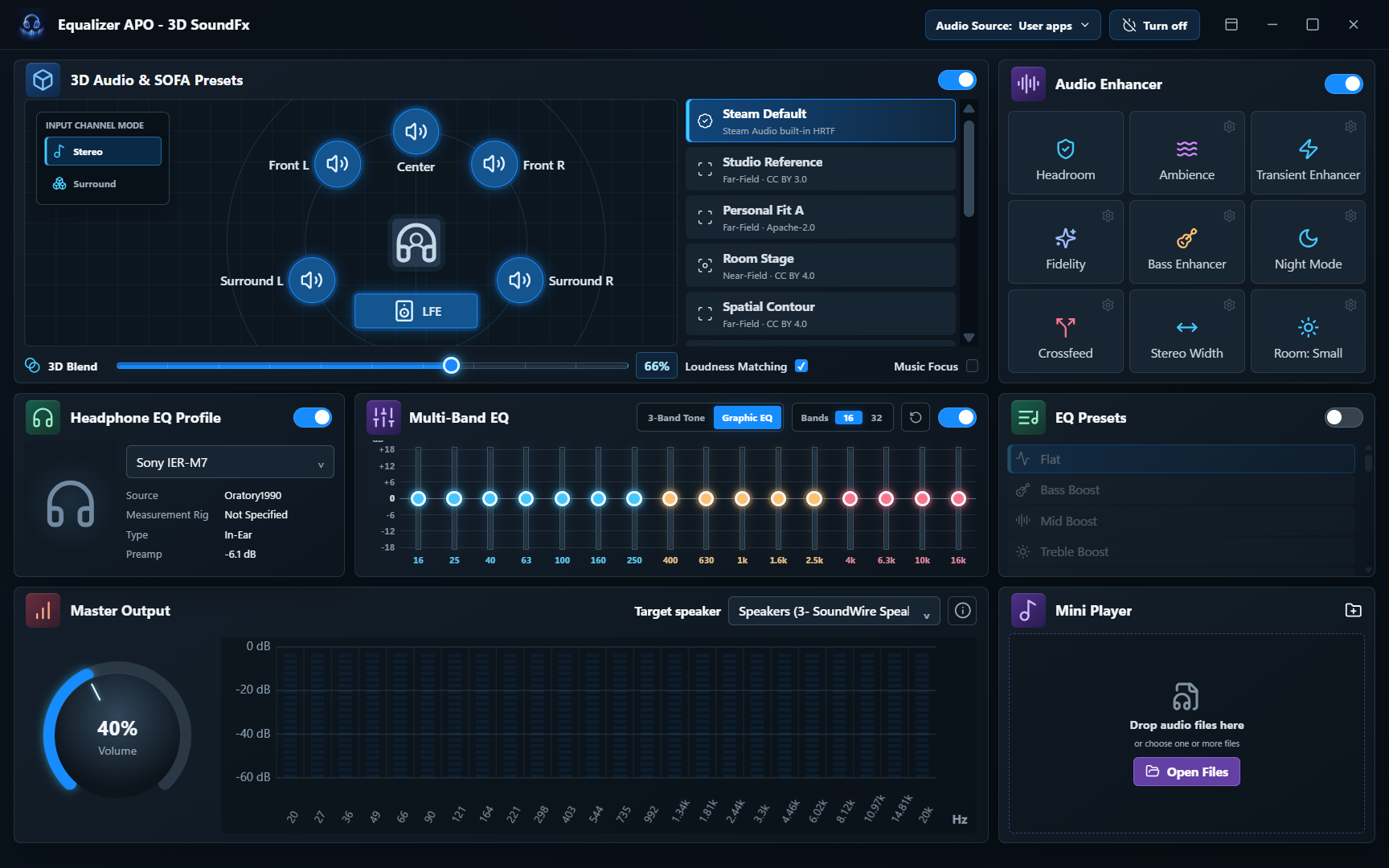
Bring a virtual speaker stage to your headphones, shape the tone to your taste, and choose how your everyday apps play.
Explore HRTF-based 3D headphone audio with 11 profile choices, a 0–100% 3D Blend, and six virtual-source toggles. Choose Stereo or Surround input, with Music Focus for stereo content.
HRTF PROFILES · 3D BLEND · MUSIC FOCUSMake quick Low, Mid, and High adjustments, or fine-tune your sound with 16- and 32-band graphic EQ views. Cut or boost by up to 18 dB, reset the curve, or double-click to reset one band.
3-BAND TONE · 16 / 32-BAND VIEWSFind a tonal starting point with Flat, Warm, Vocal, Rock, Dance, Piano, Orchestral, and more. Select a preset or switch to custom tone or graphic EQ for your own adjustments.
8 NATIVE + 20 EXTENDED PRESETSSearch more than 6,000 headphone profiles with measurement and recommended preamp information. Model-specific correction runs alongside your selected preset, tone controls, or graphic EQ.
6,033 PROFILES · INDEPENDENT CORRECTIONAdjust or mute active apps independently from the system tray. Choose 3D SoundFx for processed audio or send an app directly to a physical speaker or headphone output.
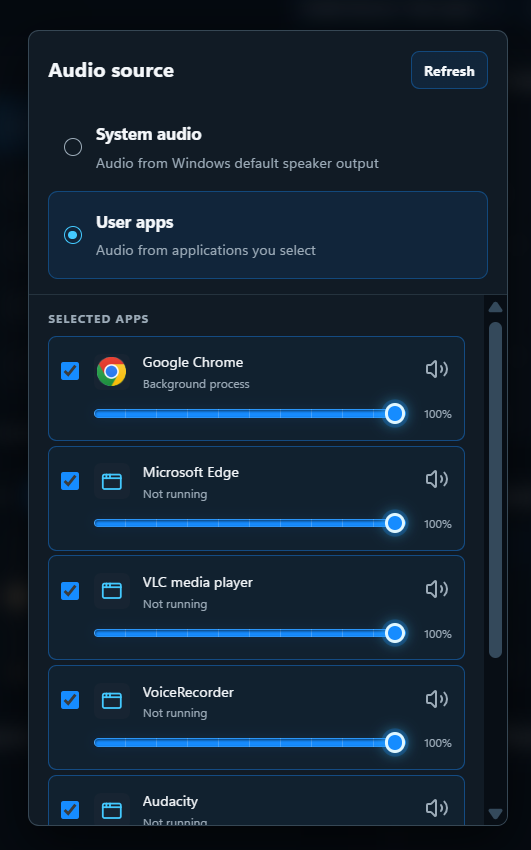
APP VOLUME · MUTE · OUTPUT ROUTINGChoose which apps receive your sound effects. Open Audio Source, select User apps, and check the applications you want Equalizer APO to process. Choose System audio to use audio from the Windows default speaker output.
SYSTEM AUDIO · USER APPS · APP SELECTIONControl each active playback device’s Windows master volume and mute state from the tray. The dashboard separately lets you select a target speaker and adjust processed playback volume.
PER-DEVICE VOLUME · TARGET SPEAKERTry Dynamic EQ, Fidelity, Bass Enhancer, Transient Enhancer, Night Mode, and Small, Medium, or Hall room ambience. Explore Crossfeed or Stereo Width as alternatives to spatial imaging.
IMPACT · TONAL BALANCE · ROOM AMBIENCEA dark, Fluent-inspired dashboard brings spatial controls, EQ, headphone profiles, and a live spectrum into one workspace. Switch to compact mode or keep listening from the tray.
UNIFIED DASHBOARD · COMPACT MODELearn how to tune your Windows equalizer and headphone EQ, understand surround sound and spatial audio, or select apps for Equalizer APO processing.
Choose the applications whose audio you want Equalizer APO to process, then shape their sound with your EQ and listening effects.
Open Audio Source in the dashboard's top bar and select User apps. Check the applications you want to include: audio from the selected apps is processed by Equalizer APO.
Selected apps share your current EQ and listening effects.
For System audio mode, send audio into the 3D SoundFx virtual speaker, apply your effects, and hear the result through your selected physical speaker or headphones.
The driver is required for live audio processing. On your first launch, follow the app's driver installation prompt if it is not already installed, and complete any requested restart.
The app sets 3D SoundFx as the Windows default playback device during driver installation. In Audio configuration, confirm that System output shows Speakers (3D SoundFx). Select it again if your default device has changed.
Choose the physical speakers or headphones you want to hear under Target speaker. Audio sent to 3D SoundFx passes through the app's effects before playing through this output.
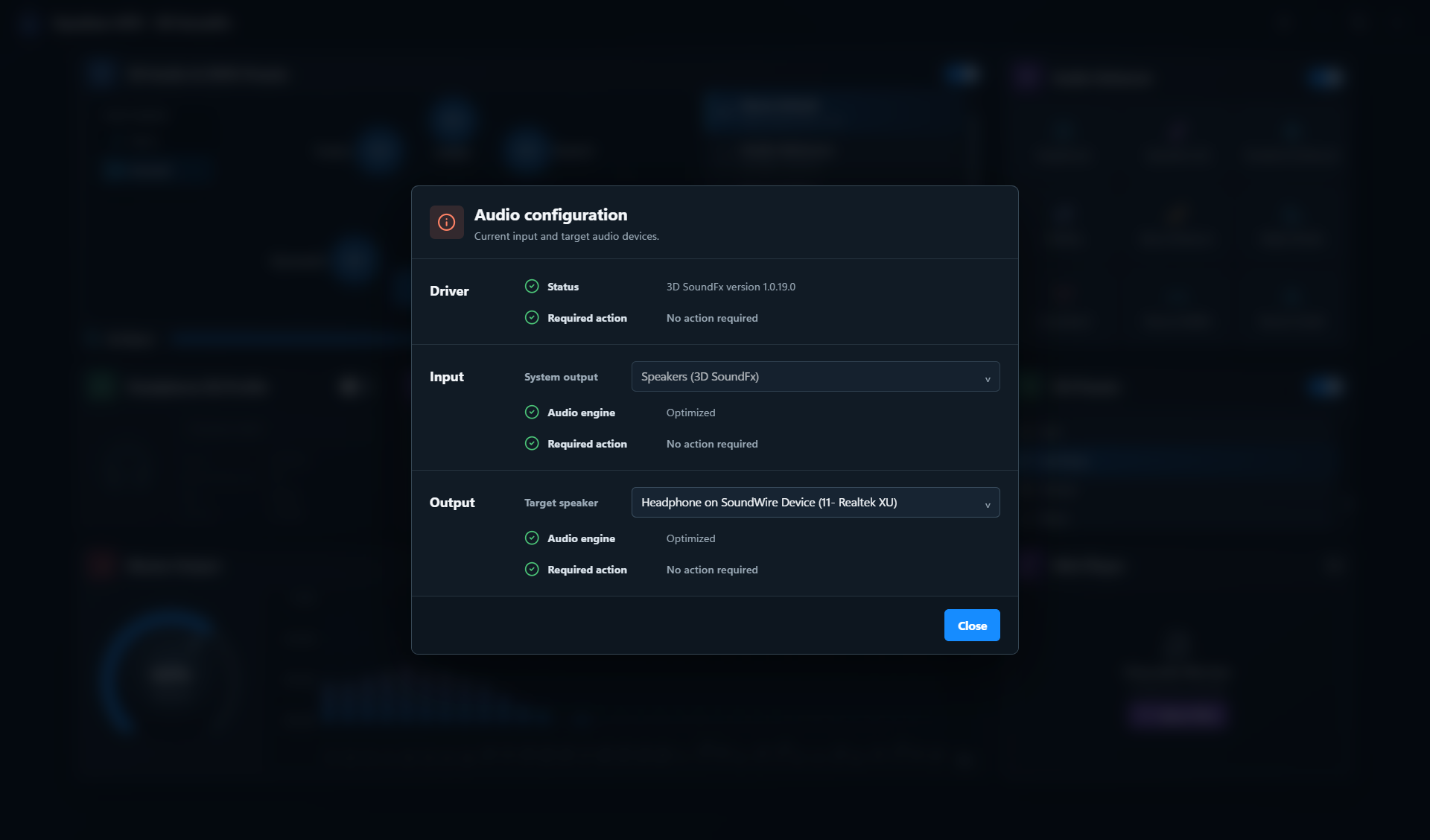
Your audio route: Media app → 3D SoundFx → EQ and spatial effects → Target speaker
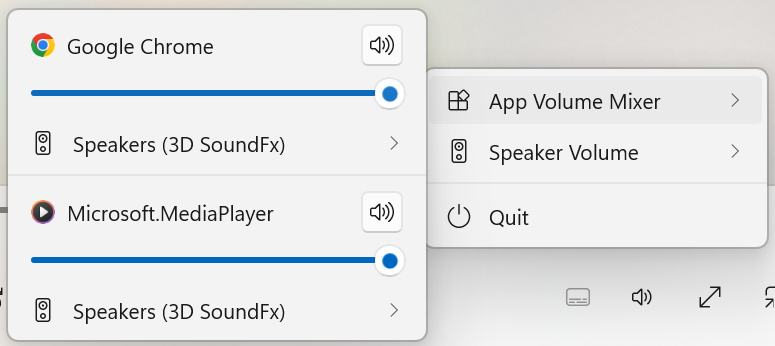
Open the app's tray menu to change playback levels and choose where active media apps play.
Open Speaker Volume from the tray menu to see your active playback devices. Each speaker or headphone output has its own volume slider and mute button, so you can change levels without reopening the dashboard.
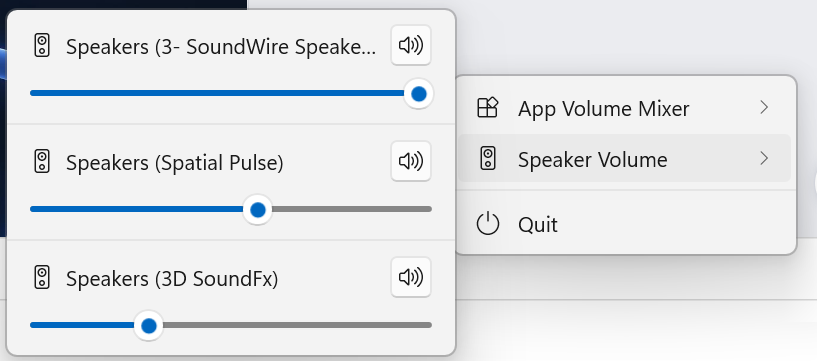
Open App Volume Mixer from the tray menu to find apps with active audio sessions. Adjust a browser or media player's volume independently, mute it, or open its speaker submenu to select an output device.
Start playback if an app is not listed. Output switching depends on Windows and the source app.
Combine headphone correction with your preferred EQ. Try Music Focus in Stereo mode and adjust the spatial blend to taste.
Explore binaural headphone playback for compatible multichannel mixes. Results depend on the source audio and any spatial processing already active.
Try Night Mode at a lower playback volume, then quiet or mute individual apps from the tray mixer.
Send selected apps through 3D SoundFx and route others directly to available physical outputs. Adjust each app’s volume independently.
Compare EQ presets, headphone correction, and spatial profiles with local files in the built-in mini player.
Keep audio processing in the background, switch to compact mode, and use tray controls without reopening the full dashboard.
Learn how Equalizer APO detects apps playing audio in Available Apps, and how to move your chosen apps to Selected Apps for EQ and effects processing.
Read article →Understand spatial audio, surround sound, HRTF, EQ, and headphone profiles through simple examples and the controls in Equalizer APO - 3D SoundFx.
Read article →Learn what an equalizer changes, how to choose your headphone profile, and how to use graphic EQ or presets for bass, vocals, clarity, and a warmer sound.
Read article →Equalizer APO - 3D SoundFx is an equalizer for Windows x64 and ARM64 with 16- and 32-band graphic EQ, 28 presets, headphone correction, virtual surround sound, and app audio controls. Use Audio Source to choose the applications whose audio you want to process.
View on Microsoft Store →The 3D Audio panel uses HRTF processing to render a virtual speaker stage over headphones. Choose Surround input for compatible multichannel content or Stereo for two-channel content. The headphone output remains stereo; the perceived space depends on the source, headphones, selected profile, and listener.
Open the app’s Microsoft Store page using the link below for availability, installation options, and system requirements.
Equalizer APO - 3D SoundFx supports Windows x64 (64-bit Intel/AMD PCs) and ARM64 (64-bit Arm PCs). Check the Microsoft Store page for Windows version requirements.
Yes. Equalizer APO - 3D SoundFx supports Windows ARM64 as well as x64. You can check your architecture in Settings > System > About under System type, and view app details on Microsoft Store.
Open Audio Source in the dashboard and select User apps, then check the applications you want Equalizer APO to process. Selected apps share your current EQ and listening effects. Choose System audio to use audio from the Windows default speaker output.
In System audio mode, live processing applies to audio routed to the 3D SoundFx virtual speaker, then forwards it to your selected physical output. Apps routed directly to physical outputs bypass that path; exclusive audio paths are not automatically intercepted.
Yes. The pinned catalog has 6,033 recommended headphone profiles, including model variants and measurements. Correction uses an independent bank alongside Preset, 3-Band Tone, or Graphic EQ. The count is profiles, not unique headphone models.
Choose Stereo or Surround input, one of 11 HRTF choices, a 0–100% 3D Blend, Loudness Matching, and six source toggles. Music Focus is available in Stereo mode. Profiles offer different spatial cues; they do not scan your ears or provide head tracking.
Audio Source lets you select which apps receive processing in User apps mode. Selected apps share the same EQ and listening effects; separate per-app EQ chains are not available. The tray mixer also provides volume, mute, and output-device controls for active apps.
Preset, custom tone, and graphic EQ are alternative user-EQ modes. The 16-band view edits the same underlying 32-band bank. Crossfeed, Stereo Width, and spatial imaging are alternative imaging modes; headphone correction remains independent.
Open or drag in local audio files and use an in-session playlist with seeking, shuffle, and repeat. Playback support depends on the file format and encoding. The player uses the same tuning engine and can switch back to live Windows audio.
Minimizing or closing to the tray keeps the engine running; Quit stops it. Setup guidance and tray alerts help identify driver or audio-route issues. Apps routed to the virtual speaker need the app running to forward their audio.
The dashboard provides the main listening controls and a live spectrum. Detailed source-position editing, limiter parameters, and diagnostic telemetry are engine capabilities rather than a full set of dashboard controls. Headroom management and limiting do not guarantee distortion-free playback or hearing protection.
Discover Equalizer APO - 3D SoundFx: spatial headphone listening, personal EQ, and everyday app audio control. View the app on Microsoft Store.
View on Microsoft Store →