
 Microsoft Store
 How to Use User Apps: Choose Which Applications Receive Audio Effects
Learn how Equalizer APO detects apps playing audio in Available Apps, and how to move your chosen apps to Selected Apps for EQ and effects processing.
By Equalizer APO - 3D SoundFx Team · · 4 min readUser apps lets you choose which applications have their audio processed by Equalizer APO - 3D SoundFx. Select a browser, music player, or another app that is playing sound, and apply your current EQ and listening effects to its audio.
The workflow starts with two lists: Available Apps contains applications Equalizer APO detects playing audio, and Selected Apps contains the applications you have chosen for processing.
Open Audio Source and Choose User Apps
Open Audio Source in the dashboard’s top bar, then select User apps. This is the mode for choosing individual applications as your audio sources.
The panel also offers System audio, which uses audio from the Windows default speaker output. Choose User apps when you want to select the applications whose sound will be processed.
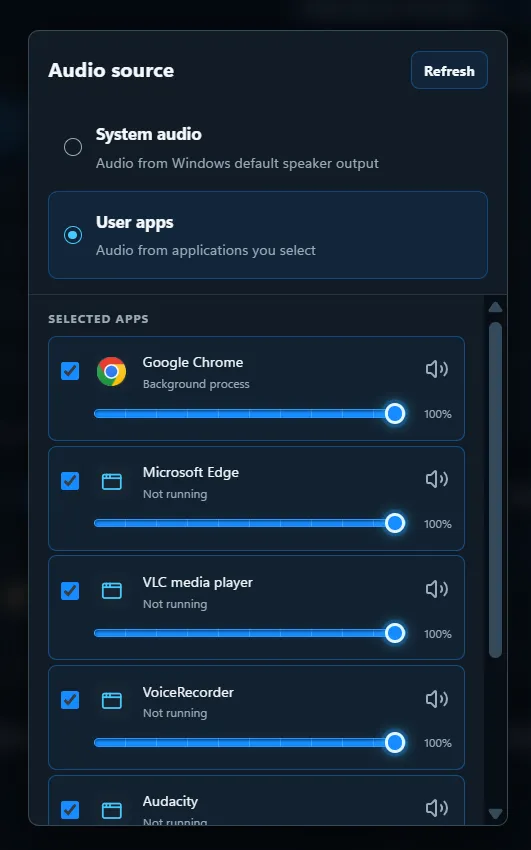
The Audio source panel shows the applications selected for processing. The apps and their status will depend on your computer.
Step 1: Start Playing Audio in an Application
Open the application you want to use and start playback. For example, play a video in your browser or a track in your music player.
Equalizer APO automatically detects applications that are playing audio and adds them to Available Apps. Opening an application without playing sound may not be enough for it to appear in this list.
Step 2: Find the Application in Available Apps
Return to the Audio source panel and look for your application under Available Apps.
This list helps you discover audio sources. An app appearing here means it is available to select; you still need to choose it for processing in User apps mode.
If the application is missing, keep its audio playing and check the list again. You can also use the panel’s Refresh button to update the list.
Step 3: Select the Application for Processing
Select the application you want Equalizer APO to process. It moves from Available Apps into Selected Apps, and its audio is processed by Equalizer APO.
You can choose additional applications using the same steps:
- Start playback in the application.
- Find it in Available Apps.
- Select it so it appears in Selected Apps.
Use Selected Apps to review which applications you have included for processing.
Step 4: Adjust Your Sound
With your application selected and playing audio, return to the dashboard to adjust your sound. Try an EQ preset, make changes in Multi-Band EQ, or explore the listening effects.
The selected applications use your shared EQ and listening effects. User apps chooses which applications receive processing; it does not create a separate EQ curve or effects chain for each application.
For a guide to the tuning controls, see Headphone Profiles, Multi-Band EQ, and Presets.
Example: Process Audio from Your Browser
Suppose you want to apply your listening settings to a video playing in Google Chrome:
- Play the video in Chrome.
- Open Audio Source and choose User apps.
- Find Google Chrome in Available Apps.
- Select Chrome. It moves to Selected Apps, and Equalizer APO processes its audio.
- Adjust your EQ or listening effects while the video continues playing.
To include a music player as well, start a track in that player and select it from Available Apps. Both selected applications will use the current processing settings.
Common Questions
Why Is My Application Missing from Available Apps?
Make sure it is actually playing audio. Equalizer APO detects applications with audio playback, so start a video, song, or another sound, then check Available Apps again. Use Refresh if needed.
Is Detection the Same as Selection?
No. Automatic detection adds an application to Available Apps. Selecting it moves it to Selected Apps and includes its audio in Equalizer APO processing.
Can I Process More Than One Application?
Yes. Select each application you want to include. Review Selected Apps to see your choices; those applications share your current EQ and effects.
Where Can I Find This Feature on the Website?
Visit the Audio source feature overview for an illustrated introduction, or explore the dashboard’s other audio controls.